
1. Download the sample report
This is the same single HTML file Octopus Scanner saves after every scan, so you can see exactly what you will get. It covers the issues found on each page with evidence screenshots, the results for linked PDFs, the pages that were skipped and why, and ready-to-copy tickets for your developers.
View the sample report (opens in a new tab) Download it (HTML, 7 MB)
Please note: the sample may not reflect every feature or improvement in the latest release.
2. Opening it
Download the file, then open it in your web browser. It needs no internet connection and nothing to install. Because it is opened from a folder rather than through the app, a few features work slightly differently; Report Anatomy, Opening, editing and sharing a report section explains which.
3. Things to try
- Read the Summary: See how many issue types were found, how serious they are and which pages they are on.
- Open a ticket: Select View Ticket on any issue to see the affected pages, why it matters and how to fix it, ready to copy into an issue tracker.
- Change a severity: Use Move To on an issue and watch the counts and charts update.
- Check the PDFs: Open PDF Checks to see each document's results, then All Checks on any PDF for the full list.
- See what was skipped: Open Skipped Pages and use the category buttons, or Breakdown by Reason, to see why pages were left out.
- Edit and save: Select Enable Editing, make a change, then select Save & Download HTML to keep your own copy.
4. About the sample
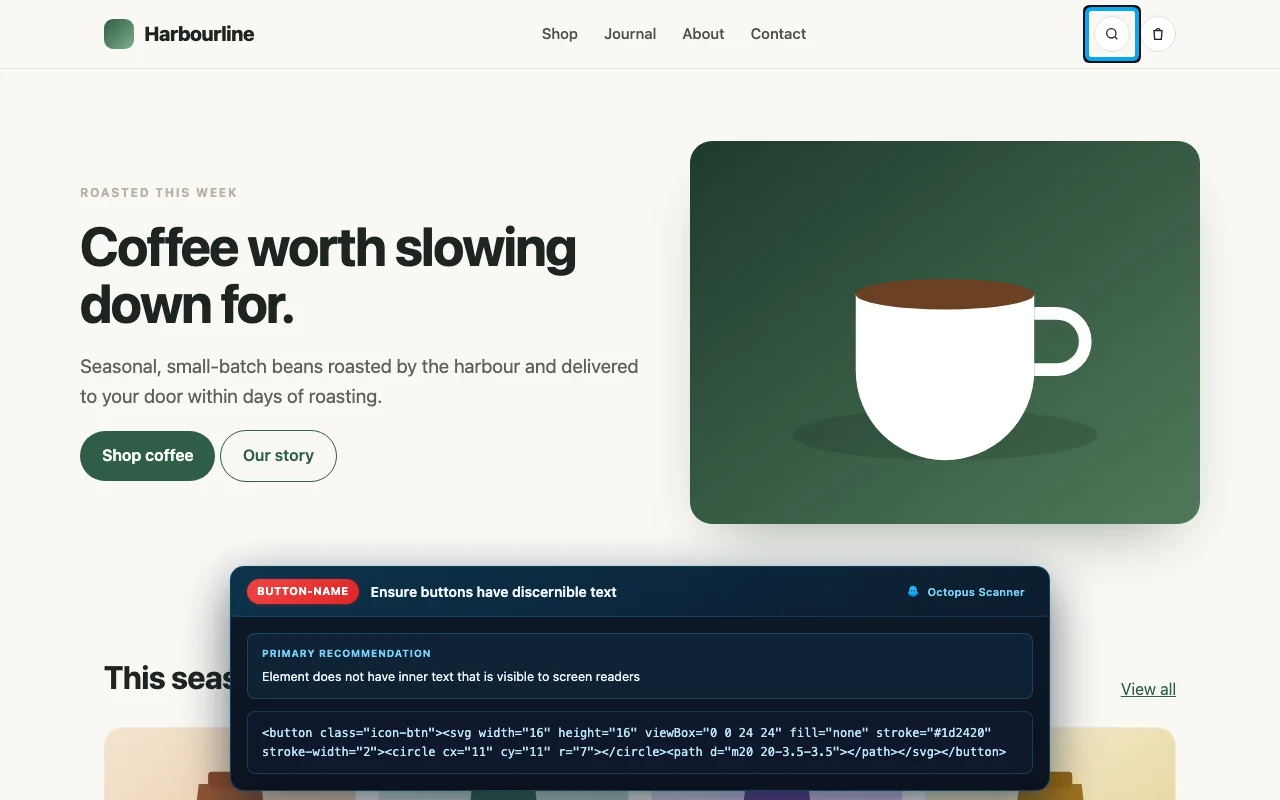
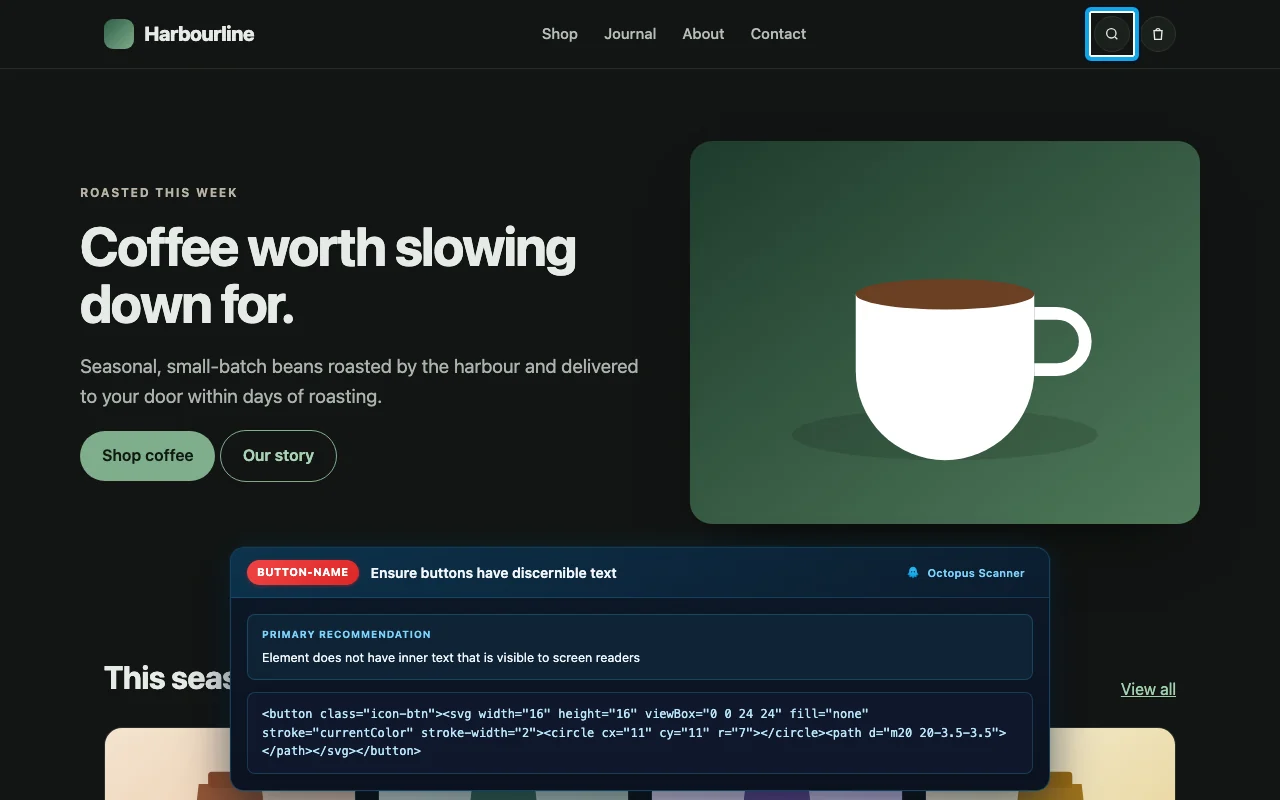
The scan covered Harbourline Coffee Roasters, a fictional online shop built for this sample with common accessibility mistakes left in on purpose. Its web addresses appear as https://, a domain reserved for examples, and the scan date and time have been left out.
- Pages: 11 pages scanned at desktop and mobile sizes, using the default settings.
- Issues: Nine issue types: three critical, four serious, one moderate and one minor.
- PDFs: Three linked PDFs checked, one of which has no issues.
- Skipped: Four addresses left out, such as the checkout, which the site's robots.txt blocks.
Screenshot Example
An evidence screenshot captured automatically during a scan, with Stamp Screenshot turned on.
5. Related guides
- Report Anatomy, top of the page explains every part of the report.
- After Your Scan covers what to do with one.
- When you're ready, download Octopus Scanner to scan your own site.
Was this page helpful? Email your feedback about Sample Report.