
To follow along, download the Sample Report and open it in your browser. For advice on what to fix first and what to check by hand, see After Your Scan.
1. Opening, editing and sharing a report
- Opening a report from disk: Browser security rules limit two features when you open a report directly from a folder rather than from Past Reports in the scanning interface. The Hide controls on individual issues aren't offered, and screenshots saved to a separate
_screenshotsfolder can't be bundled into a ZIP from within the report. Use Load Screenshots Folder to view them instead. Everything else works the same. - Editing: A report opens read-only.
- Select Enable Editing to change the report's text. Buttons, links and other controls keep working while editing is on, and the button says whether editing is on, so you can switch it off with the keyboard.
- When you select Save & Download HTML, your text changes, approvals, severity moves, removed review items and re-ordering are saved into the new copy. Hidden issues and their tickets are left out of it.
- A report changed after it was generated shows Edited after generation in its header.
- Live figures: Charts, summary figures and the narrative counts recalculate as you approve, move, remove or hide findings.
- Reset View: Reloads the report. If there are unsaved edits, it asks first.
- Sharing a copy: A copy made with Save & Download HTML works on its own, offline, on any computer, with every tab, link, ticket and screenshot intact.
- If screenshots were saved to a separate folder, keep that folder next to the copy.
- Shared copies are read-only: Move To, Approve, Remove, Report Tools and Additional Information are left out, so a recipient can't change the severity of your findings.
2. Executive summary and analytics
The top of the report gives an overview that updates as you verify findings.
Text description: a report header titled Accessibility Scan Report, with the audited site, scan date and report buttons
Example of a report header titled Accessibility Scan Report, with the audited site https://www.example.com/, the date and 3 pages scanned, and Export Coverage, theme, search and Export Settings buttons.
Text description: At a Glance bar, showing how issue types split across Critical, Serious, Moderate and Minor
Example of the At a Glance bar: Critical 4 issue types, 36 percent, 22 instances; Serious 5 issue types, 45 percent, 42 instances; Moderate 2 issue types, 18 percent, 12 instances; Minor 0 issue types.
Text description: Top Issues and Pages section, listing the top 5 issues and the top 5 pages
Example of the Top Issues and Pages section. Top 5 Issues by Severity and Instance Count lists Images must have alternative text 10, Buttons must have discernible text 4, Form elements must have labels 4, Select element must have an accessible name 4, and Elements must meet minimum color contrast ratio thresholds 30. Top 5 Pages with Most Issue Types lists the contact page 9, the shop page 7 and the home page 5.
- Header: Shows the audited site, linked to the address scanned. The line underneath gives the date, in your computer's date format, and what was covered. Notices such as Scan stopped early, Screenshots disabled and Edited after generation appear in that line, in colour, only when they apply.
- Coverage: States exactly what the audit covered, for example "84 pages scanned · 4,851 skipped · 5 PDFs checked".
- Header controls: Export Coverage downloads a text file listing every page found, scanned, skipped or failed, and any PDFs checked. The theme button switches between Auto, Light and Dark. The search button reveals a field for filtering findings; closing the search clears any filters. Export Settings appears when the report includes its scan settings.
- Summary: Three short paragraphs that summarise the report.
- The first describes the scan: the site, the viewports, how many of the pages found were scanned, the rules checked against (the WCAG version and level, plus PDF checks and Local LLM Review when used) and any skipped pages.
- The second gives the results: the number of issue types by severity, the total instances, the share of issue types of major severity (critical or serious) and how many automated checks passed on every page.
- The third names the most critical or serious issues and the most common issue.
- Approve a Needs Review item, or move or hide a violation, and the summary and counts update.
- At a Glance: A single bar showing how unique issue types split across Critical, Serious, Moderate and Minor, with the number of issue types, the percentage and the instances for each. Each severity links to its tab.
- Top Issues & Pages: One dropdown holding two ranked lists. The top 5 issues, ranked by severity and then by instance count, show systemic problems worth fixing first. The top 5 pages, ranked by the number of issue types, show where problems are concentrated.
- Issue Overview: Every issue found, with its severity and affected pages, each linking to its full details.
- Accessibility Issues Found: Tabs for All and for each severity, so you can focus on one level at a time. The tabs work with a mouse or the arrow keys.
Text description: Issue Overview list, with four issues and their severities
Example of the Issue Overview list: Critical, Images must have alternative text; Critical, Buttons must have discernible text; Serious, Elements must meet minimum color contrast ratio thresholds; Moderate, Heading levels should only increase by one. Each entry links to its full details.
3. Interactive review and triage
These controls let you record your own judgement in the report.
https://www.example.com/shop
Text description: Accessibility Issues Found section, with severity tabs, a Critical group and one issue's details
Example of the Accessibility Issues Found section: tabs for All 11, Critical 4, Serious 5 and Moderate 2 with All selected; a Critical group with 4 issue types and 3 pages affected; the issue Buttons must have discernible text with View Ticket, Move To and Next Issue controls; and a Details table listing the description, rule, initial impact, 4 instances across 2 pages, and 2 affected pages.
- Needs Review: When Include Needs Review Section is turned on before the scan (it is off by default), findings that need human judgement, such as contrast over a complex background, are kept in their own tab.
- Approve: Each Needs Review item has an Approve button and a review priority of High, Medium or Low, based on how serious the issue would be if confirmed. Approving an item moves it into its severity group, beside any confirmed issue for the same rule without counting the rule twice, and every figure in the report updates.
- Remove: Removes a Needs Review item that doesn't apply. It is also left out of CSV and JSON exports made from the report.
- LLM Review: When the optional Local LLM Review suggested issues axe-core can't detect, they are kept in their own LLM Review tab, to approve or remove like Needs Review items.
- Hide: Hides an issue while you triage. Hidden issues also leave Issue Overview and ticket navigation, and are left out of a saved copy and of JSON and CSV exports.
- Move To: Changes the severity of any issue. It moves to the chosen group, and every count, tab and chart updates.
4. Scan execution and scope
These sections record how the scan ran, so the audit can be checked and repeated.
- Error logs: Separate System Errors, Crawl Errors and Page Scan Errors sections, each with links to skip past it and a Hide control on every entry. Pages where frame content couldn't be checked are flagged here, so coverage gaps are never silent.
- Skipped Pages: Every excluded address with its reason, such as "Locale variant cap reached", "Skipped by Smart Crawl: near-duplicate page structure and content — represented by [URL]" or "HTTP Error 404".
- Each entry shows its category, such as Bot protection, HTTP error or Caps and duplicates.
- When there is more than one reason, the list opens with a summary per reason, and when there is more than one category, buttons such as All and Bot protection, each with its count, show one category at a time.
- On very large scans, the report lists up to 500 pages in each category so it stays quick to open, and says how many there are in total; the companion CSV lists every skipped page.
- See Skip categories.
- PDF Checks: Shows each linked PDF as a card, with its address, whether it is tagged and how many issues were found.
- All Checks opens the results of all thirteen checks, each marked Pass, Issue found, Couldn't be checked or Not checked. Below it, each issue found has its own card, most severe first, with its impact, description, WCAG criterion, a link to the PDF technique or criterion, and how to fix it, and View Ticket opens it as a PDF Ticket.
- The section heading counts the PDFs and issues, and a Show unreadable PDFs button, with a count such as Show 3 unreadable PDFs, lists any PDF that couldn't be read.
- The checks don't confirm that the tags, reading order, colour contrast or alternative text are correct.
- See PDF checks.
Text description: a PDF in the PDF Checks section, with its 13 checks and one Critical issue
Example of a PDF in the PDF Checks section. The file annual-report.pdf at https://www.example.com/files/annual-report.pdf is marked Tagged with 1 issue. All Checks (13) is opened, showing 11 passed and 1 issue: Tags, Text layer, Screen reader access, Document title, Title shown in title bar, Document language, Headings, Table headers, Links, Tab order and Bookmarks pass; Image alternative text has an issue, 3 of 8 tagged images have no alternative text; Form field names is not checked because there are no form fields. Below it, the Critical issue PDF images have no alternative text has a View Ticket button and rows for its description, WCAG 1.1.1 Non-text Content (Level A), the reference PDF technique PDF1, and how to fix it.
- Passed Checks: A collapsible list of every rule that passed on every page and viewport scanned, each linked to its rule documentation.
- Severity guide: Additional Information explains the two ratings every issue carries: its impact level from axe-core, and its ticket severity, described under Tickets.
- Scan settings: The settings the scan ran with are embedded in the report, with credentials stripped from addresses and sensitive journey values removed. Export Settings downloads them as a file you can import into Octopus Scanner to repeat the same scan.
5. Issue details and technical evidence
Each issue gives developers what they need to find and fix it without leaving the report.
- Details: The description, the rule with a link to its documentation, the initial impact, the linked WCAG criteria, the instance count and the affected pages.
- Linked WCAG criteria: Each issue mapped to WCAG names its success criterion, for example "1.4.3 Contrast (Minimum) (Level AA)", linked to the official W3C Understanding page.
- Affected pages: The first five pages are listed, with Show all X pages to reveal the rest.
- Issue navigation: View Ticket, Move To, Previous Issue and Next Issue on every issue, with links to jump to the next severity group.
- Primary Recommendation: The failure summary for each instance is split so the main fix stands apart from the alternatives.
- Parent Context: The parent element's markup, which matters for problems such as nested interactive controls.
- Copy HTML and Copy Selector: Copy the failing markup, or the CSS selector to use in your browser's developer tools.
- Frame-aware selectors: Issues found inside embedded frames, including frames from other sites, name the frame as well as the element, so you can find them again.
- Dark mode badges: With Scan Dark Mode on, issues found only under dark mode are badged Dark Mode Only, and issues where only some instances fail in dark mode are badged Includes Dark Mode, so they aren't mistaken for light-mode failures.
- Instances shown: Where an issue or Needs Review item has more than 25 instances on a page, the first 25 are shown, with Show all X instances to reveal the rest.
- Per-rule cap: By default the report keeps up to the first 1,000 instances of each rule, fewer on very large scans, so it stays manageable on computers with little memory. To keep every instance, turn on Show Every Instance Of Every Rule before scanning. The companion CSV always contains every instance.
6. Screenshots and stamping
- Highlighting: Failing elements are captured with a 4-pixel blue outline, a thin white edge inside and a dark edge outside, so the element stands out on light and dark pages alike. When the element is inside content embedded from another website, such as a YouTube video, the whole embed is outlined instead.
- Stamping: With Stamp Screenshot on, each screenshot carries a panel with the rule ID, the description, the primary recommendation and the failing markup, so the image stays useful when shared on its own. The panel is placed clear of the element so it doesn't cover it.
- Screenshot viewer: Select a screenshot to open it full size, with zoom and pan controls. Escape closes it.
- Lossless images: Screenshots are saved as lossless PNG files, so the evidence is pixel-accurate.
Screenshot Example
An evidence screenshot captured automatically during a scan, with Stamp Screenshot turned on.
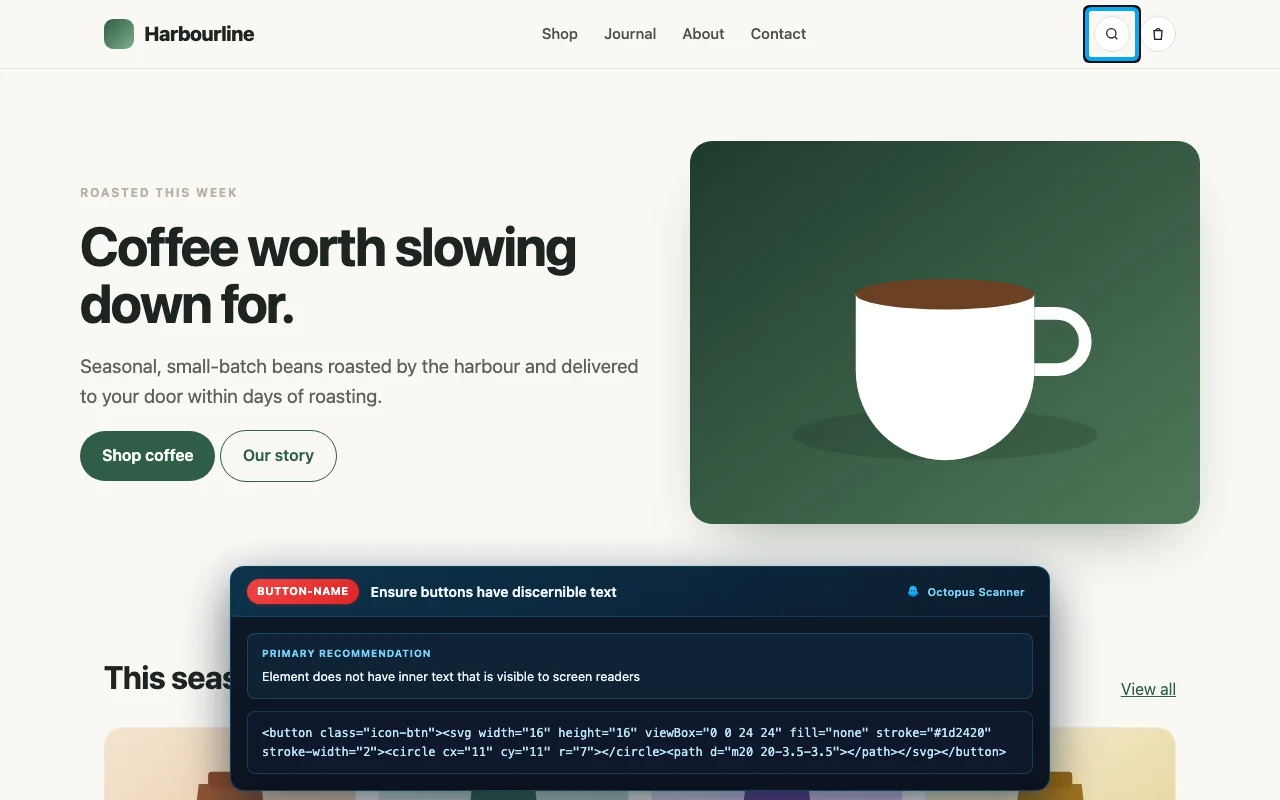
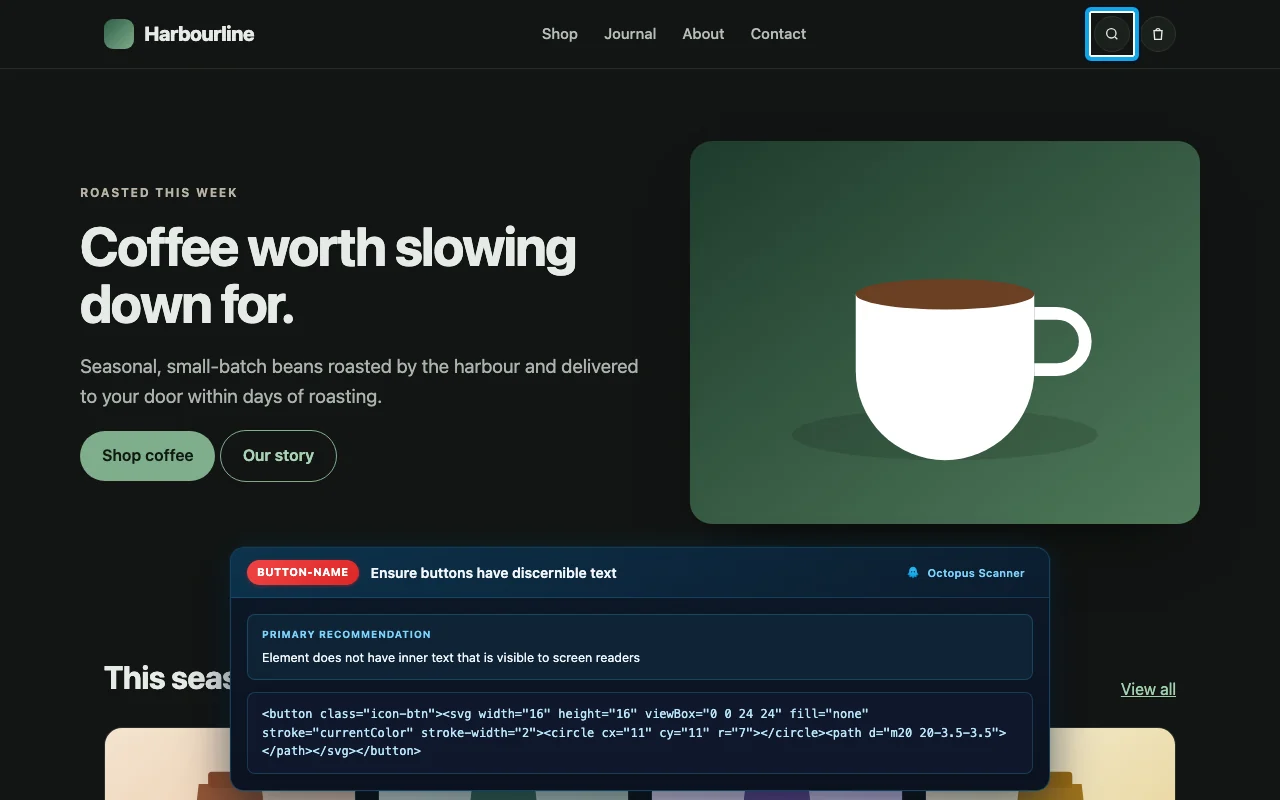
Screenshot Mode, Stamp Screenshot and the other capture settings are described in the User Guide.
7. Tickets
Select View Ticket on any issue to open it as a structured development ticket, ready to paste into Jira, DoneDone or any other issue tracker.
- Order: Tickets read in a single column: title, Issue Description (how many elements on how many pages have the issue, and what is required), Why This Matters, Recommended Fix, WCAG Criteria & Axe Rule, Steps to Recreate, Affected Pages, Environment, Review Priority (Needs Review items only), Screenshot and Impact, with Additional Information such as tags, instances and viewports at the end.
- Why This Matters: A plain-language explanation of who is affected and how, so the ticket justifies its own priority.
- Ticket severity: A ready-to-use severity label based on the WCAG level the issue fails.
- Level A becomes "2. Major Impact on Accessibility", and Levels AA and AAA become "3. Minor Impact on Accessibility".
- Best-practice rules with no WCAG level are rated from their impact: Critical and Serious become Major, and the rest become Minor. Only these two labels are used.
- The numbers follow the usual bug-tracker scale, where "1. Blocker" is the most severe. Octopus Scanner never assigns Blocker itself, because whether an issue stops someone completing a task depends on how your site is used, so raise a ticket to Blocker yourself when it does.
- The ticket severity is separate from the axe-core impact level (Critical, Serious, Moderate or Minor), so a Critical issue at Level AA is labelled Minor here.
- Steps to Recreate: Step-by-step instructions for one representative instance, with arrows to move between instances and Copy Steps.
- Download Instance List (CSV) exports every instance of that issue when the report is open from Octopus Scanner.
- In a report opened straight from its folder in a browser, or a copy of one, it lists the instances kept in the report and adds a line pointing to the companion CSV, which holds every instance.
- Affected Pages: A page selector with Copy URL List and, where more pages were found than are detailed, Copy Entire URL List.
- Environment: The operating system, Chrome version, axe-core version, Octopus Scanner version and the main address scanned, plus the model used when Local LLM Review ran.
- Review Priority: Shown only for Needs Review items: High, Medium or Low, based on how serious the issue would be if confirmed. The rules engine couldn't decide whether these are real, so check them by hand before raising them.
- Screenshot: Move between the screenshots for the issue, and download one or all of them.
- Ticket navigation: Previous and next controls and a counter, such as "1 / 34", move through findings without closing the ticket.
- Keyboard use: Opening a ticket moves focus to its title, focus stays inside the ticket while you press Tab, and Escape returns you to the issue you came from.
- Copy Ticket Content: Copies the whole ticket as Markdown, with severity, compliance links, justification, environment and steps to recreate, in a single paste.
- PDF tickets: An issue from PDF Checks opens as a PDF Ticket, with WCAG Criteria & PDF Check in place of the axe rule, the PDF under Affected PDF, and steps to open and check the PDF.
Text description: Accessibility Ticket overlay for the rule Button-Name, ticket 1 of 11
Example of the Accessibility Ticket overlay for the rule Button-Name, ticket 1 of 11, with previous, next and close buttons. Sections show the Title, Buttons must have discernible text; the Issue Description, saying that 4 buttons on 2 pages have no name that a screen reader can announce and that buttons must have discernible text, such as a visible label or an aria-label; Why This Matters, explaining that custom controls without proper names, roles and states are announced as meaningless elements; the Recommended Fix; and WCAG Criteria and Axe Rule, listing success criterion 4.1.2 Name, Role, Value, conformance level A, axe rule Button-name, and rule documentation. The footer has Close and Copy Ticket Content buttons.
iframe, button
4.Check the HTML<button></button>
5.Observe the issue: Ensure buttons have discernible text
Showing instance 1 of 4. For all instances, please refer to the attached file.
Copy StepsDownload Instance List (CSV)
Affected Pages (2)https://www.example.com/contactCopy URL List (2)
EnvironmentOSmacOSBrowserChromeEngineAxe-core
Text description: lower part of a ticket
Example of the lower part of a ticket. Steps to Recreate shows instance 1 of 4: navigate to the contact page, set the viewport to Desktop 1280 by 800, inspect the element iframe, button, check the HTML of an empty button element, and observe the issue Ensure buttons have discernible text, with Copy Steps and Download Instance List (CSV) buttons. Affected Pages (2) shows a page selector and a Copy URL List (2) button. Environment shows the operating system, browser and engine.
8. Exports and files
- Companion CSV: Every HTML report comes with a companion CSV containing every instance, untruncated.
- Each row is one instance, followed by rows for Local LLM suggestions, manually added issues, PDF issues, PDFs that couldn't be checked, pages that weren't fully scanned and skipped pages, with columns for Issue ID, Description, Impact, URL/File, Viewport, CSS Selector, HTML Snippet, Help URL, WCAG Tags, How to Fix, Source and LLM Review.
- It shares the HTML report's file name, with .csv in place of .html.
- Use the HTML report for triage and the CSV for sorting, filtering and data work. Report File Formats, top of the page describes the CSV and JSON files in detail.
- Screenshots ZIP: When screenshots are captured, a ZIP of them is available from Scan Complete, so the evidence is easy to pass on.
- Screenshots folder: When a scan captures more than 400 screenshots, or more than 100 MB of them, they are written to a
_screenshotsfolder beside the report instead of being embedded. Keep that folder with the report. - Printing: A printed report includes the issue details and every section, opened for printing, and leaves out the report's buttons. A report in the dark theme prints as dark text on white.
- Report Tools: A section at the end of the report with Save & Download HTML, Download All Screenshots, Enable Editing, Reset View, Export as JSON and Export as CSV.
- Export as JSON holds the data kept in the report, so it follows the per-rule cap.
- Export as CSV includes every instance when the report is open from Octopus Scanner; in a report opened straight from its folder in a browser it follows the per-rule cap.
- The companion CSV always holds every instance.
- Export Bug Data: Saves a diagnostic JSON file to attach to a bug report. It holds the scanned address with credentials removed, scan counts, the viewports scanned and page layout measurements, and no page text or system information.
- Integrity hash: A SHA-256 hash is embedded in every HTML report and shown in its footer, as a record of the report as generated. CSV and JSON reports don't carry one. A copy that is edited or saved again with Save & Download HTML keeps the original hash, labelled Original SHA-256, so it no longer matches the copy itself. See Report File Formats, Integrity hash section.
- Built to finish: Results are written to disk page by page as the scan runs, and the report is built from those files rather than held in memory. On computers with little memory, safeguards reduce detail rather than fail, and a CSV is produced as a last resort, so scan data isn't lost. The Troubleshooting Guide explains what to do if a report is large, slow or produced as CSV.
Text description: Report Tools section, with buttons to save, download, edit, reset and export the report
Example of the Report Tools section with Save and Download HTML, Download All Screenshots (22), Enable Editing, Reset View, Export as JSON and Export as CSV buttons.
9. Safe to open and share
- Captured content cannot run: Content taken from a scanned page is escaped before it is written into the report, and each report carries its own content policy as a second layer.
- No outbound requests: Opening a report makes no network requests, so it can't signal that it was opened. Links open only when you select them.
- Spreadsheet-safe exports: Values that a spreadsheet would treat as a formula are neutralised in CSV exports.
- Clearly marked: The footer carries a Confidential marking with a reminder not to share the report without authorisation, alongside the version, date and integrity hash.
- Screenshots show what the page showed: Real names, addresses or account details on a page appear in the evidence. Set Screenshot Mode to Disabled, or scan a non-production environment, when that matters.
For the full detail of these protections, and what a report contains before you send it on, see Security and Considerations when sharing reports in Data, Privacy & Security.
10. Related guides
- After Your Scan explains how to prioritise findings and what to check by hand.
- Report File Formats, top of the page describes the CSV and JSON files.
- The Sample Report lets you explore a real report.
Was this page helpful? Email your feedback about Report Anatomy.